Stack Rows
Stack Rows is use to combine data in horizontal and vertical direction. The illustraion are given for both vertical and horizontal stacking.{.content-description}
Stack Rows - Vertical
In vertical stacking, the data is stacked one below another, therefore, the user need to make sure that the data in all the stacks is formatted column-wise, so that after stacking the final table will contain sensible data.
Sample Data
We have sample data from three different sources. We will use the vertical stack rows to create a combined table.


Step 1
Click on the Stack Rows command under SheetKraft tab.

Step 2
A window will appear, then select the data manually for Selection 1 by clicking the marked tab in screenshot below.

Step 3
If the selected data contain headers then click [ ] My data has headers otherwise no need. You can choose the way you want your data to be interpreted. Then click OK.

Step 4
Select the other stack of data by clicking the marked tab for Selection 2.

Step 5
Change worksheet to select data for Selection 2 to Source 2 by clicking the Change sheet tab. Then click OK.

Step 6
Now select the data manually and for the case here click [ ] My data has headers. And then click OK.

Step 7
Now to add the data from third source, we need to increase the selection range by clicking on the marked + sign.

Step 8
Select the other stack of data by clicking the marked tab for Selection 3.

Step 9
Change worksheet to select data for Selection 3 to Source 3 by clicking the Change sheet tab. Then click OK.

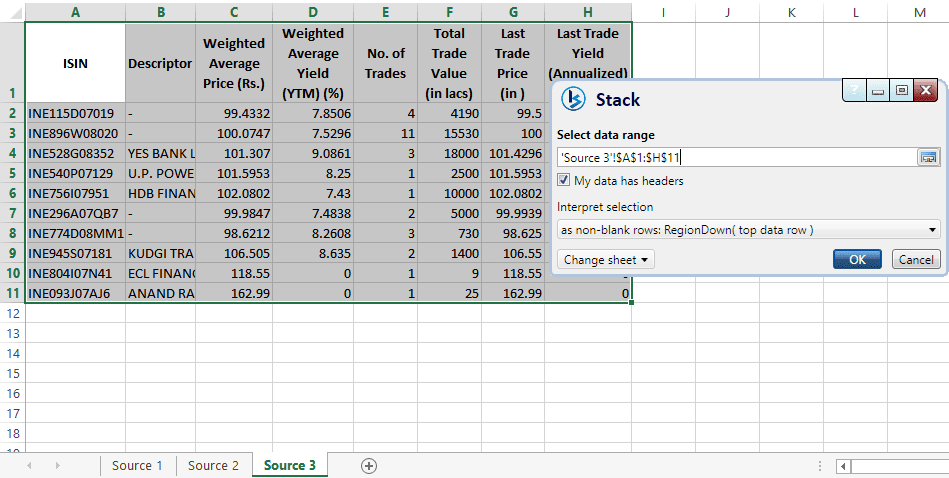
Step 10
Now select the data manually and for the case here click [ ] My data has headers. And then click OK.
Step 11
Select the Vertical tab.

Step 12
Select a blank range for the final reult display. You can either show the result in any of the existing worksheets (and select any blank range) or choose a new worksheet. In this illustraion, we have chosen New worksheet.

Final Result Display
Now we have the complete data in new worksheet [Sheet4].

Final Stacked Data
Final stacked data in new worksheet.

Stack Rows - Horizontal
In horizontal stacking, the data is stacked side-by-side, therefore, the user need to make sure that the data in all the stacks is formatted row-wise, so that after stacking the final table will contain sensible data.
Here, we have sample data from two different sources. We will use the horizontal stack rows to create a combined table.

Step 1
Click on the Stack Rows command under SheetKraft tab.
Step 2
A window will appear, then select the data manually for Selection 1 by clicking the marked tab in screenshot below.

Step 3
If the selected data contain headers then click [ ] My data has headers otherwise no need. You can choose the way you want your data to be interpreted. Then click OK.

Step 4
Select the other stack of data by clicking the marked tab for Selection 2.

Step 5
Now select the data manually and for the case here click [ ] My data has headers. You can choose the way you want your data to be interpreted. Then click OK.

Step 6
Select the Horizontal tab.

Step 7
In this illustraion, we have chosen the existing worksheet [Sheet2!$H$2:$I$17] for final result display.

Final Result Display
Now we have the complete data in the selected range in the same worksheet.

Final Data
Final stacked data combined in horizontal direction.